Post-Installation Review & Training
Prepared by MatrixIT.net
Client: ____________________ Date: ____________________
Meeting Objective
Why We’re Here
The Actifile agent has been deployed and the first scan is complete. In this meeting we will:
- Review the initial scan results and risk findings
- Train your team on the Actifile dashboard
- Plan the next phases: identify, protect, and monitor
- Hand over ongoing operational responsibilities
Actifile Lifecycle – You Are Here
Deploy
Agents installed, tenant configured
Identify
Scan, classify, map sensitive data
Protect
Encryption, rules, allowlisting
Monitor
Alerts, risk tracking, compliance
Scan Results Summary
The first scan has completed across your environment. Below are the key metrics. (MatrixIT will fill in actual values during this meeting.)
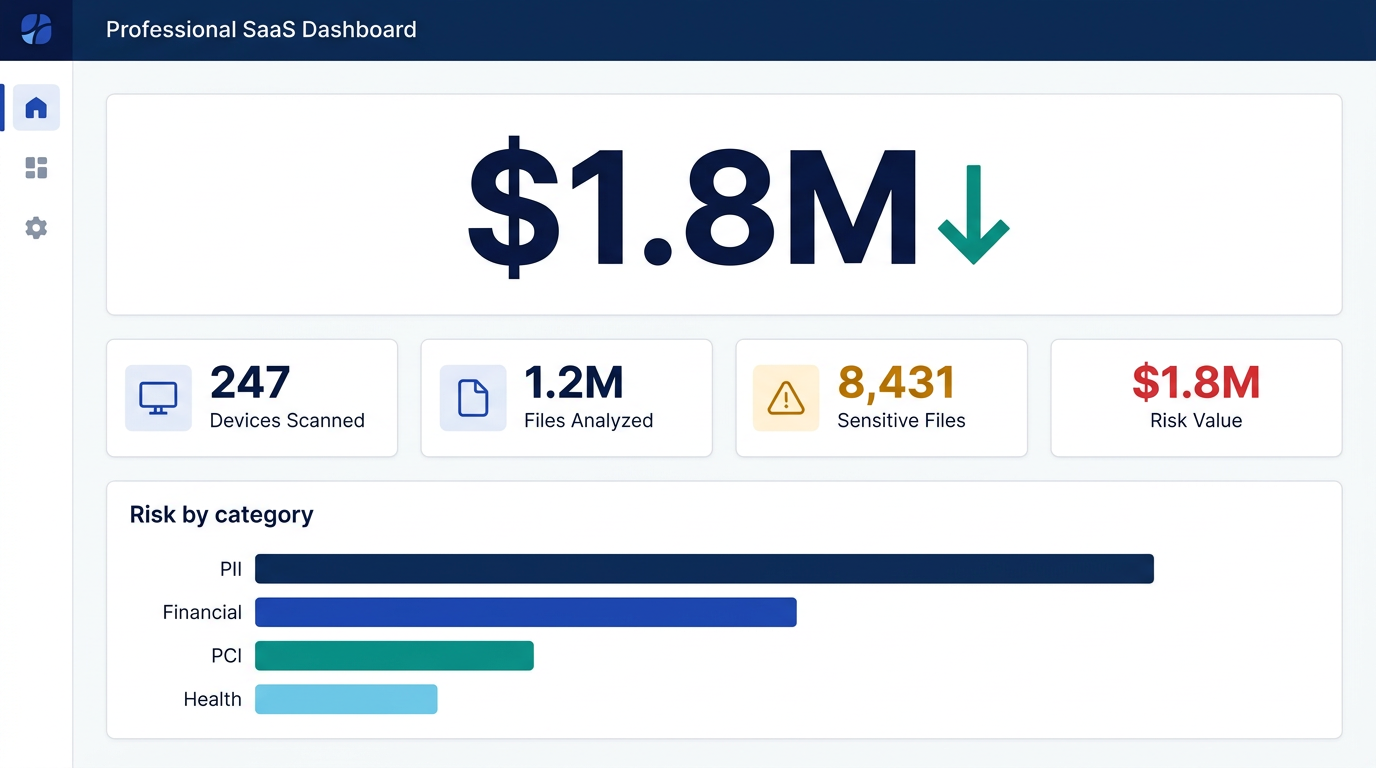
Actifile Dashboard – Risk Overview (illustrative; actual values populated during meeting)
What Do These Numbers Mean?
Data Risk Value: Actifile quantifies risk in dollars — the potential financial exposure if sensitive data is breached. This considers the volume, type, and classification of sensitive data found.
Risk values can change as new files are created, modified, or scanned. Actifile continuously monitors and recalculates.
Data Classification Breakdown
Actifile classifies sensitive data using multiple classifier types. Below is a summary of what was found:
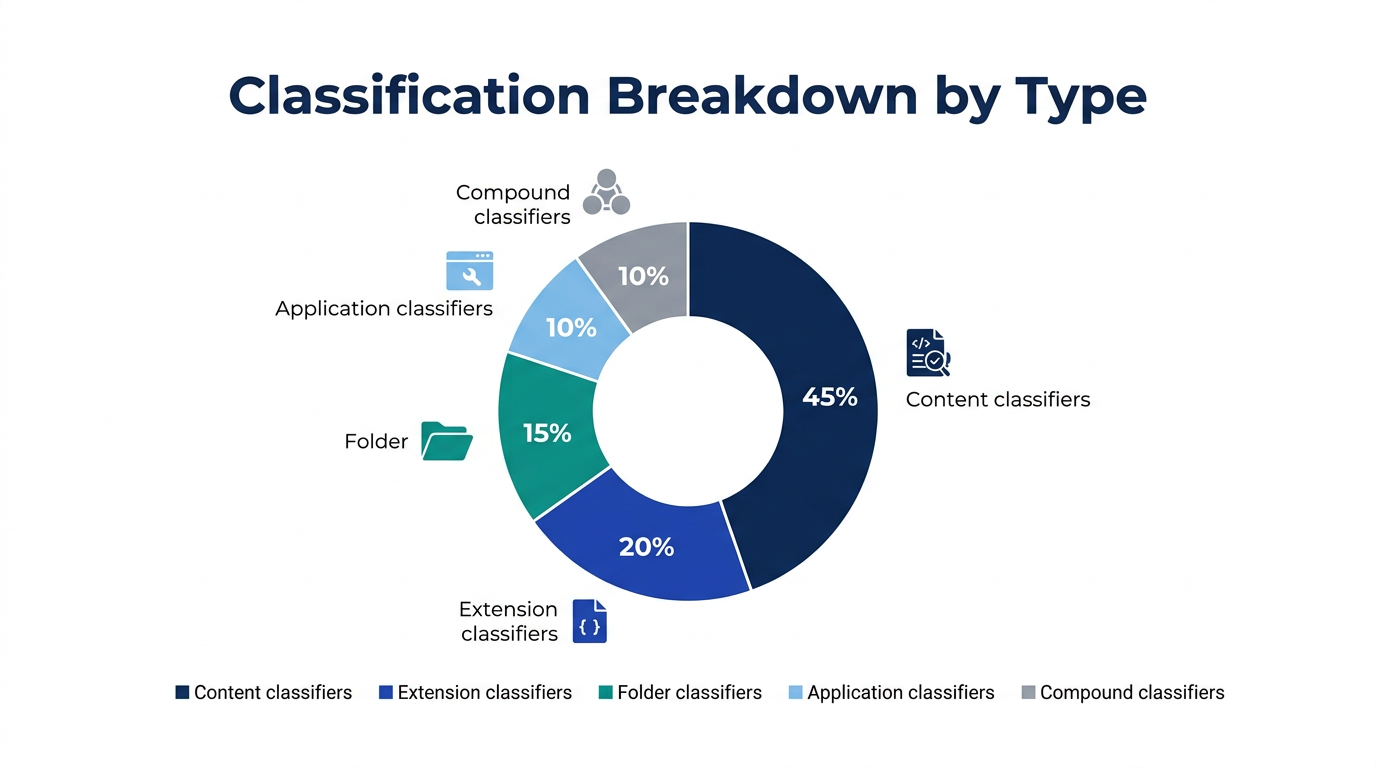
Classification Breakdown – By Classifier Type
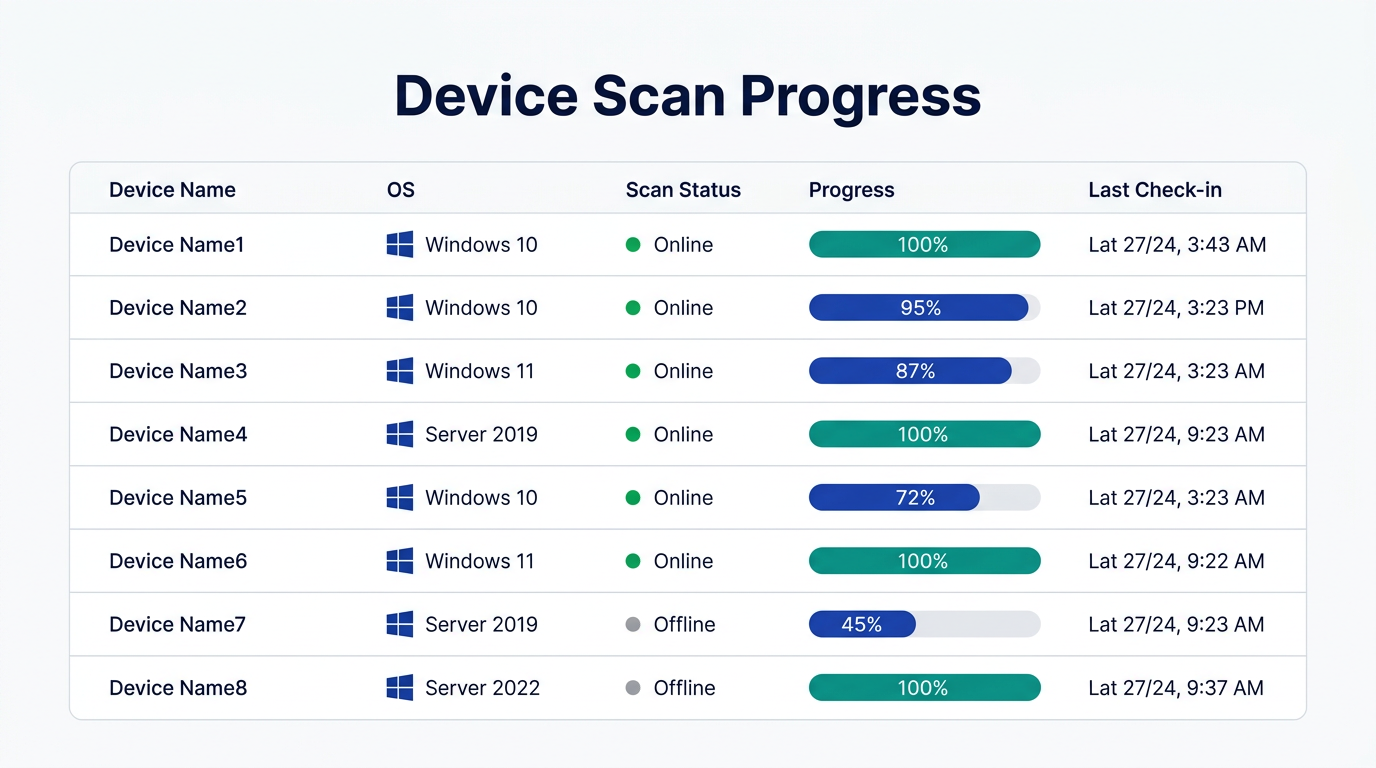
Device View – Scan Progress per Machine
Dashboard Training
We will walk through the Actifile portal together. Key areas to cover:
Portal Navigation
my.actifile.com — Partner/MSP management portal (tenant management, add customers, deployment settings)
app.actifile.com — Application portal (dashboard, devices, scan results, policies, reports)
Dashboard Overview
Risk summary, sensitive data count, device status, recent activity
Devices Tab
View all deployed agents, scan progress %, online/offline status, last check-in
Sensitive Data View
Browse classified files, filter by type, view details and risk per file
Check Agent Status
Confirm agents are running, identify offline/stale agents, troubleshoot
Risk Values
Understand risk scoring: dollar value, severity levels, what causes changes
Alerts & Notifications
Set up email alerts for sensitive file operations and upload spikes
Right-Click Menu (Windows)
Actifile shell extensions: scan file, view classification, encrypt/decrypt
Content Detector
Inspect detected sensitive data in files; locate specific PII/financial details
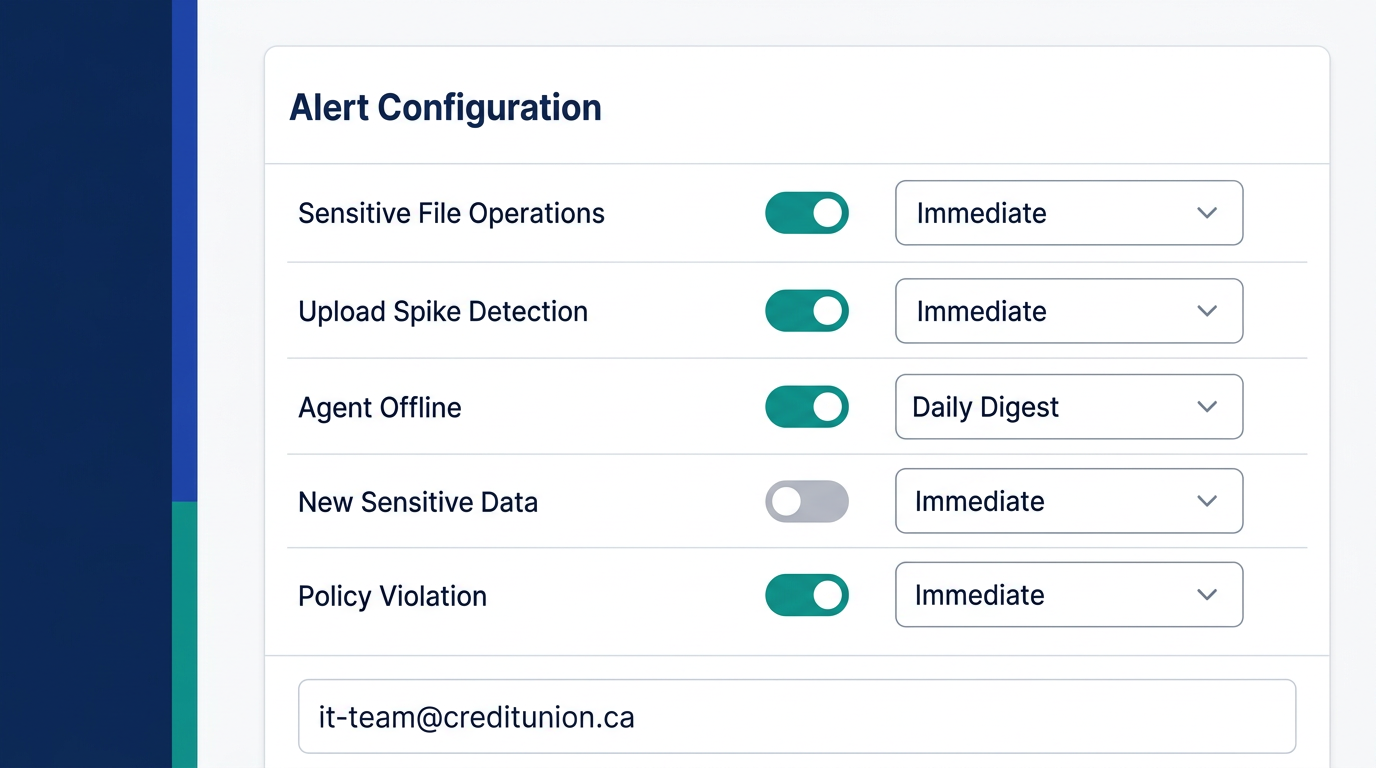
Actifile Portal – Alert Configuration
Phases: Identify → Protect → Monitor
Identify
Review and tune what Actifile found.
- Classifiers: content, compound, extension, folder, application, storage platform
- Template classifiers available out-of-the-box
- Custom classifiers can be created for unique data types
- Review forms, scanned docs, and corrupted files handling
- Flag false positives and adjust sensitivity
Protect
Enable data protection after monitoring period.
- Data protection actions (formerly rules)
- Invisible file-level encryption
- Application allowlisting — must configure before enabling encryption
- Encryption best practices & wizard
- FIPS 140-2 compliance option
- Recommended: 1–3 months monitoring before enabling
Monitor
Continuous auditing and alerting.
- Alerts for sensitive file operations
- Upload spike detection
- Agent status monitoring
- Risk value tracking over time
- Compliance reporting
- Monthly review cadence (recommended)
Encryption Timeline
Actifile recommends running in monitoring mode for 1–3 months before turning on encryption. During this period, you identify which applications, websites, and users need access to sensitive files. This prevents disruption when encryption is enabled. The period can be shortened to a few days if needed.
Classifier Types Reference
| Content | Detects data patterns inside files (SSN, credit card numbers, etc.) |
| Compound | Combines multiple classifiers with AND/OR logic |
| Extension | Classifies by file type (.xlsx, .pdf, .docx, etc.) |
| Folder | Classifies all files in specific folder paths |
| Application | Classifies files created/used by specific applications |
| Storage Platform | Classifies by storage location (local, cloud, NAS) |
Next Steps
Client Actions
- Review scan results in the portal over the next 1–2 weeks
- Flag any false positives or unexpected classifications
- Identify applications that access sensitive files (for future allowlisting)
- Approve classifier tuning or request custom classifiers
- Set up individual alert preferences (email notifications)
- Report any agent issues or performance concerns
MatrixIT Actions
- Adjust classifiers based on client feedback and false positives
- Create custom classifiers if needed for unique data types
- Monitor ongoing scan results and risk scores
- Prepare application allowlisting plan for encryption phase
- Schedule monthly review check-in (recommended)
- Plan encryption enablement meeting (after 1–3 month monitoring period)
Recommended Ongoing Cadence
Monthly: MatrixIT reviews dashboard, risk trends, and agent health. Short check-in call with client.
Quarterly: Deeper review of classifiers, policy changes, and encryption readiness.
After monitoring period: Dedicated meeting to enable encryption with application allowlisting configured.
Contacts & Support
Actifile Support
Support: support.actifile.com
Portal: app.actifile.com
Knowledge base: KB articles
Troubleshooting: Agent guide