Protect Phase: Encryption Enablement
Prepared by MatrixIT.net
Client: ____________________ Date: ____________________
Meeting Objective
Why We’re Here
The monitoring period is complete. You’ve had Actifile identifying and classifying your sensitive data for the recommended period. Now we move to active protection — enabling encryption and data protection policies. In this meeting we will:
- Review the monitoring period findings and any classifier adjustments
- Walk through how Actifile encryption works
- Configure application allowlisting for your environment
- Define data protection rules and policies
- Plan the encryption rollout (pilot → full deployment)
Actifile Lifecycle – You Are Here
Deploy
Agents installed, tenant configured
Identify
Scan, classify, map sensitive data
Protect
Encryption, rules, allowlisting
Monitor
Alerts, risk tracking, compliance
Monitoring Period Recap
Before enabling encryption, let’s review what the monitoring period revealed about your environment:
Monitoring Period Checklist
- Initial scan completed and results reviewed (Meeting 3)
- Classifiers tuned — false positives addressed
- Custom classifiers created (if needed)
- Applications accessing sensitive data identified
- No outstanding agent issues or performance concerns
- Client approved moving to encryption phase
How Actifile Encryption Works
Transparent Encryption
Files encrypted at rest but accessible normally to authorized users and applications. Zero workflow disruption.
FIPS 140-2 Compliant
Government-grade encryption standard. Required by many financial regulators and CIS Controls IG2/IG3.
Theft Protection
If a file is copied, emailed, or stolen — it remains encrypted and unreadable outside your environment.
Encryption Flow
Sensitive File Detected
By classifier match during continuous scan
Protection Rule Evaluates
Check: encrypt, alert, or log?
File Encrypted at Rest
Transparent to allowlisted apps; locked for others
Key Concept: Invisible to Users
When an authorized user opens an encrypted file with an allowlisted application, Actifile automatically decrypts it in memory. The user sees no difference. When saved, it’s re-encrypted. If the same file is accessed by an unauthorized app or copied to a USB drive, it remains encrypted and unreadable.
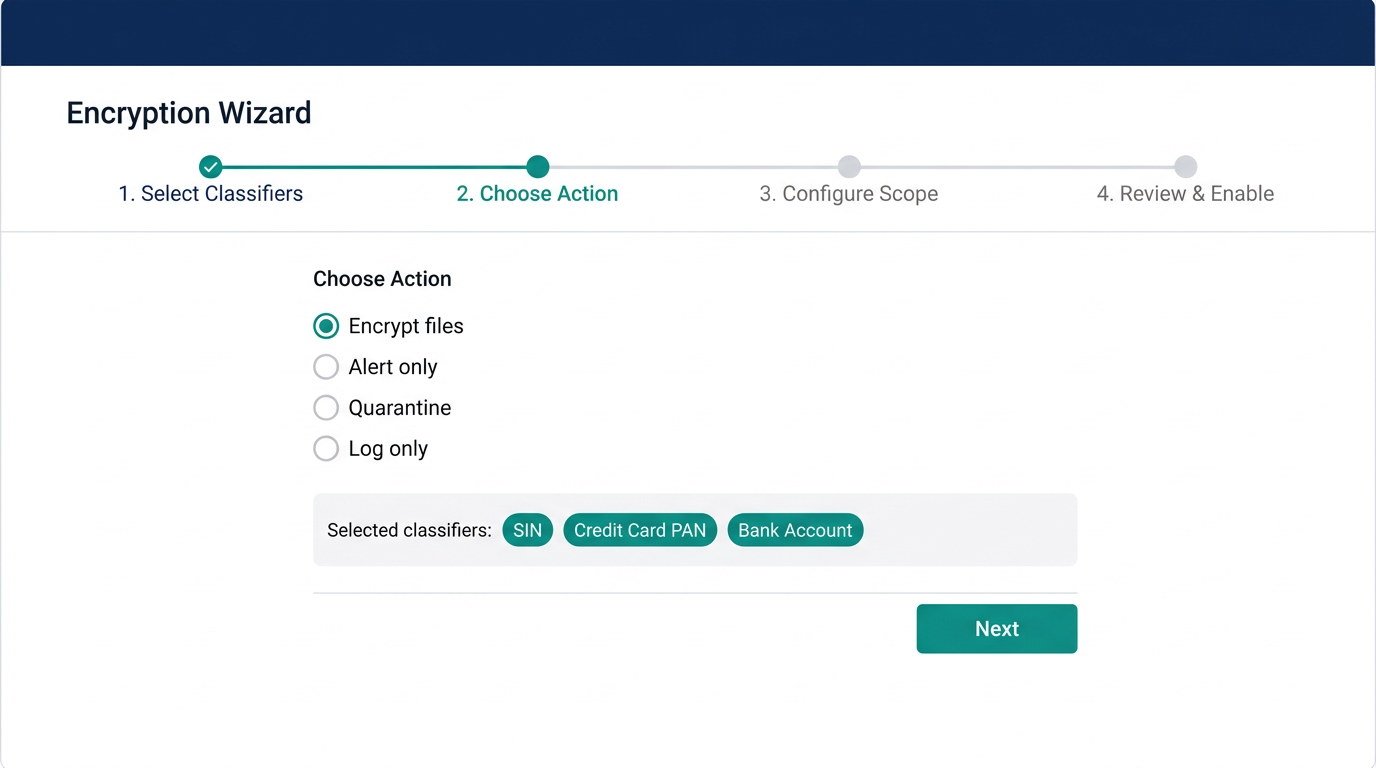
Actifile Portal – Encryption Wizard
Application Allowlisting
Critical Step Before Encryption
Application allowlisting must be configured before enabling encryption. Without it, authorized applications may be unable to access encrypted files, causing workflow disruption. This is the single most important preparation step.
What Needs to Be Allowlisted?
| Category | Examples | Action |
|---|---|---|
| Core Banking / CU Systems | Core banking platform, loan origination, member management | Allowlist all executables |
| Office Productivity | Microsoft Office (Word, Excel, Outlook), Adobe Acrobat | Allowlist (usually pre-configured) |
| Web Browsers | Chrome, Edge, Firefox — for internal portals/sites | Allowlist trusted internal sites |
| Backup Software | Veeam, Acronis, BackupExec, cloud backup agents | Allowlist to ensure encrypted files are backed up correctly |
| AV/EDR Scanners | CrowdStrike, SentinelOne, Sophos, Defender | Allowlist scanning processes |
| Internal Tools | RMM agents, HR systems, compliance tools, scanners | Review and allowlist case-by-case |
| Cloud Sync | OneDrive, SharePoint sync, Dropbox (if approved) | Allowlist sync agents |
Allowlisting Worksheet
List all applications and sites that need access to encrypted sensitive files:
| Application / Process Name | Executable Path | Reason |
|---|---|---|
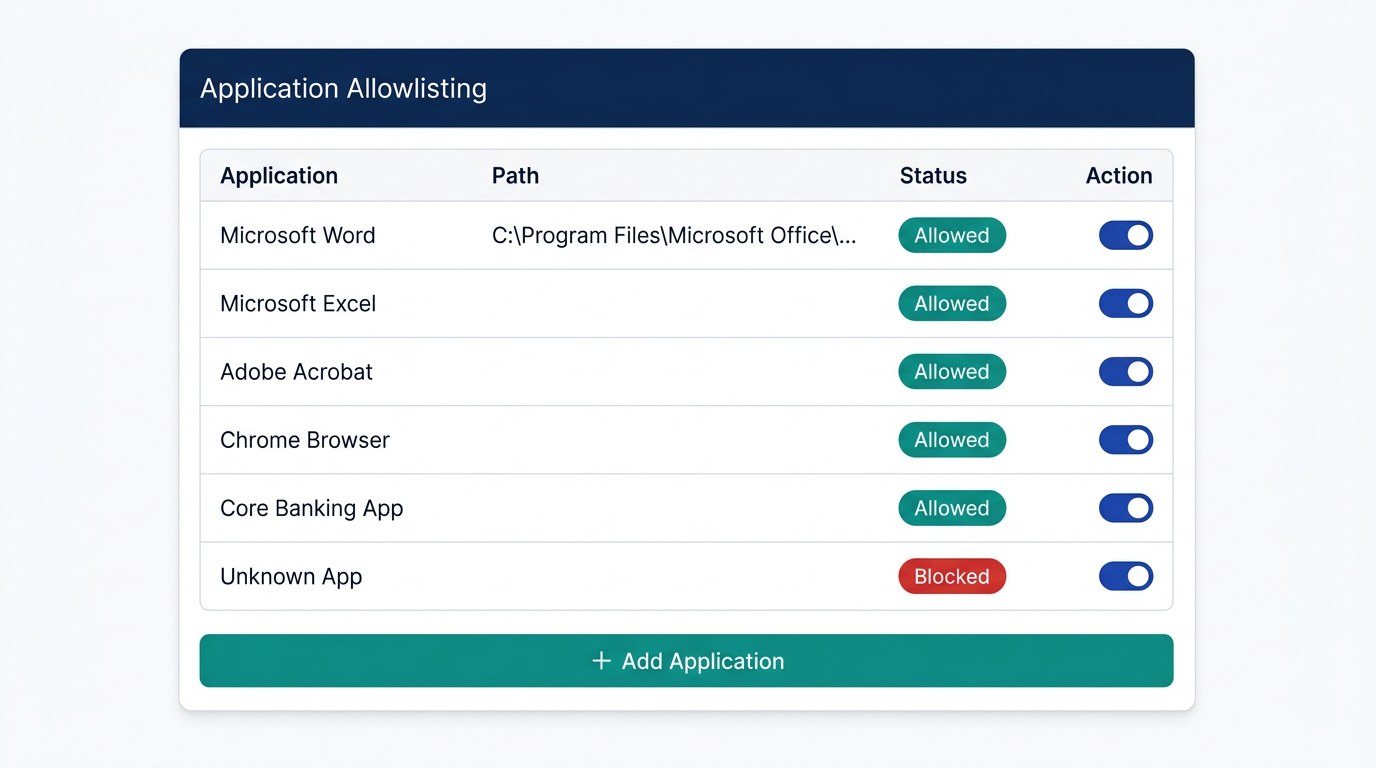
Actifile Portal – Application Allowlisting Configuration
Data Protection Rules
Protection rules define what happens when Actifile detects sensitive data. Rules are classifier-driven and can be layered.
Encrypt
Automatically encrypt files matching a classifier. Strongest protection — files unreadable if stolen.
Use for: PII, financial records, member data, loan documents, SIN numbers
Alert
Send notification when sensitive file is detected, moved, copied, or modified. No encryption.
Use for: Lower-risk data, audit trail, compliance evidence
Quarantine
Move sensitive files to a secure location pending review. For highly sensitive or unexpected findings.
Use for: Unexpected data locations, policy violations, suspect files
Log Only
Record detection in the audit trail without taking action. Useful for extended monitoring.
Use for: New classifier testing, low-sensitivity categories
Protection Rules Worksheet – Credit Union Recommendation
| Data Type / Classifier | Action | Scope | Approved |
|---|---|---|---|
| Social Insurance Numbers (SIN) | Encrypt | All devices | |
| Credit Card / PAN numbers | Encrypt | All devices | |
| Bank account numbers | Encrypt | All devices | |
| Loan / mortgage documents | Encrypt | All devices | |
| Member PII (names + addresses) | Alert + Encrypt | All devices | |
| Internal policy documents | Log | Pilot group | |
| _________________ | _______ | _______ |
Encryption Rollout Plan
Encryption should be enabled in stages to minimize risk and allow for troubleshooting:
Stage 1: Pilot Group (Week 1–2)
Enable encryption on a small pilot group (5–10 devices, IT-savvy users). Test all allowlisted applications. Verify no workflow disruption.
Stage 2: Department Rollout (Week 3–4)
Expand to one full department (e.g., back office or accounting). Address any allowlisting gaps found during pilot.
Stage 3: Organization-Wide (Week 5+)
Enable encryption across all remaining devices. Tellers, front-line staff, remote workers. Full protection active.
Stage 4: Cloud & NAS (If Applicable)
Extend protection policies to cloud storage and NAS shares. Verify scan intervals and protection consistency.
Rollback Plan
If encryption causes issues, Actifile provides multiple decryption options:
- Per-file: Right-click → Actifile → Decrypt (Windows shell extension)
- Per-classifier: Decrypt all files flagged by a specific classifier across all devices
- Per-device: Fully decrypt all files on a single device
- Bulk tool:
AFDecryptorcommand-line tool for manual decryption - Verification:
AFIsEncryptedtool to check encryption status of individual files
FIPS 140-2 Compliance
FIPS 140-2 is a US/Canadian government standard for cryptographic modules. For credit unions following CIS Controls IG2/IG3, enabling FIPS compliance ensures your encryption meets the CIS Control 3.6 (encrypt data on end-user devices) and 3.11 (encrypt sensitive data at rest) requirements at the highest standard.
FIPS Disabled (Default)
Standard AES-256 encryption. Suitable for most environments. Faster performance.
FIPS Enabled (Recommended for CU)
FIPS 140-2 validated cryptographic module. Required by some regulators. Slight performance overhead.
FIPS Decision
Security & Tamper Resistance
Actifile offers tamper resistance to prevent unauthorized removal of the agent. When enabled, an uninstall key is required to remove Actifile from any device. MatrixIT recommends enabling this for all credit union deployments.
Uninstall key stored by:
CIS Controls – Protect Phase Coverage
With encryption enabled, your credit union gains coverage for these additional CIS Control 3 safeguards:
| Control | Safeguard | Status After This Meeting |
|---|---|---|
| 3.6 | Encrypt data on end-user devices | Active |
| 3.9 | Encrypt data on removable media | Active |
| 3.11 | Encrypt sensitive data at rest | Active |
| 3.12 | Segment data processing and storage based on sensitivity | Active |
| 3.13 IG3 | Deploy a data loss prevention solution | Active |
Backup Considerations
Encrypted Files and Backups
When Actifile encrypts files, your backup solution will back up the encrypted versions. This is by design — backups of encrypted files are still protected. However, you should verify:
- Backup agents are allowlisted so they can read files for backup
- Backup size may increase slightly due to encryption overhead
- Test a restore of encrypted files to confirm they can be decrypted after recovery
- Ensure Actifile is installed on restored machines (or use AFDecryptor for standalone decryption)
Next Steps
Client Actions
- Approve protection rules and encryption scope
- Provide complete list of applications for allowlisting
- Identify pilot group users (5–10 IT-savvy staff)
- Confirm FIPS 140-2 decision
- Confirm tamper resistance preference
- Notify pilot users about upcoming encryption (no workflow change expected)
- Report any issues during pilot period immediately
MatrixIT Actions
- Configure application allowlisting in Actifile portal
- Create data protection rules per approved worksheet
- Enable encryption on pilot group
- Enable FIPS 140-2 if approved
- Monitor pilot group for 1–2 weeks
- Expand to department rollout after pilot success
- Schedule follow-up call after each rollout stage
- Prepare for Meeting 5: Monitor Phase
Pilot Success Criteria
The pilot is successful when:
- All pilot users can access encrypted files normally with approved applications
- No workflow disruption reported
- Backup and restore of encrypted files verified
- No false encryption triggers (files that should not be encrypted)
- Performance remains acceptable on pilot devices
Contacts & Support
Actifile Support
Support: support.actifile.com
Portal: app.actifile.com
Encryption FAQ: Encryption FAQ
Allowlisting: Allowlisting Guide